

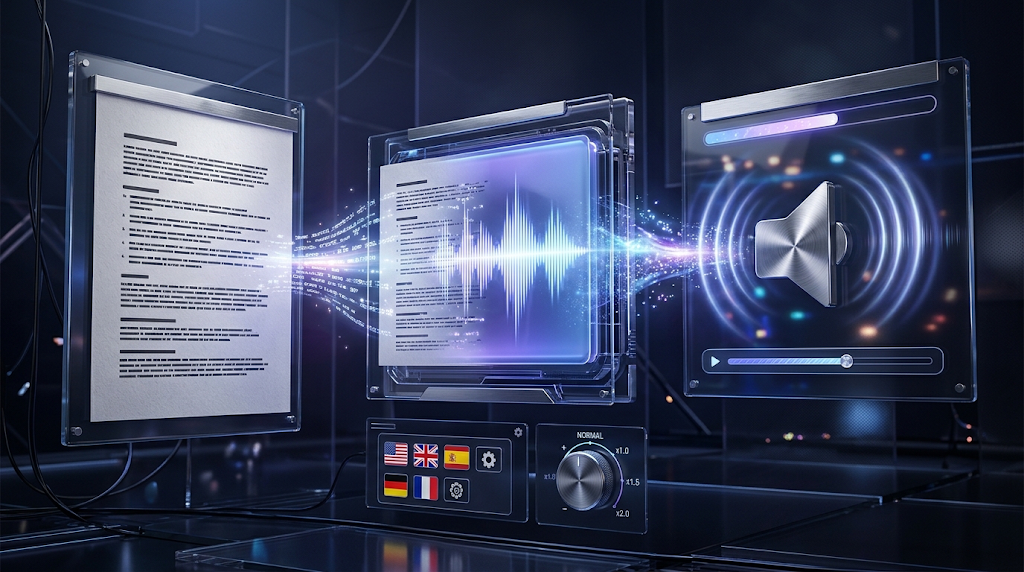
Quick answer: AI narration means a computer reads your script out loud, and you place that audio on your slides. You do not need a microphone or a quiet room. You type words, pick a voice, and get an audio file.
The technology behind it is called speech synthesis. It turns written text into spoken words. A good tool lets you pick the language, the speed, and sometimes the mood of the voice.
People use it for lessons, work updates, and training slides. A teacher can send a slide show that talks by itself. A student who dislikes the sound of their own voice can still make a clear talk.
There is one important thing to know first. Microsoft PowerPoint can record your own voice, but w` its official recording page talks about recording audio or video of you. It does not mention an AI voice. So for an AI voice, you usually make the audio in another free tool and bring it in.
🧭 Which Way Should You Add AI Narration?
Quick answer: There are three simple ways. Make the voice in Clipchamp and insert it into PowerPoint, build the whole deck in Canva, or record your own voice in PowerPoint. Pick the one that matches where your slides live.
The first way keeps your slides in PowerPoint. You make short audio files in a free voice tool, then add each file to its slide. This is the best choice if your deck is already finished.
The second way moves your slides into Canva. Canva has its own AI voice inside the design editor. This works well if you are making a new deck and do not mind leaving PowerPoint.
The third way uses no AI at all. PowerPoint records your real voice and the time you spend on each slide. We include it because it is the safest backup when a voice tool is down or a rule says you must use your own voice. If you need help building the slides first, see our guide to the best free AI presentation maker tools.
🆓 Clipchamp: Free AI Voices You Can Insert Into PowerPoint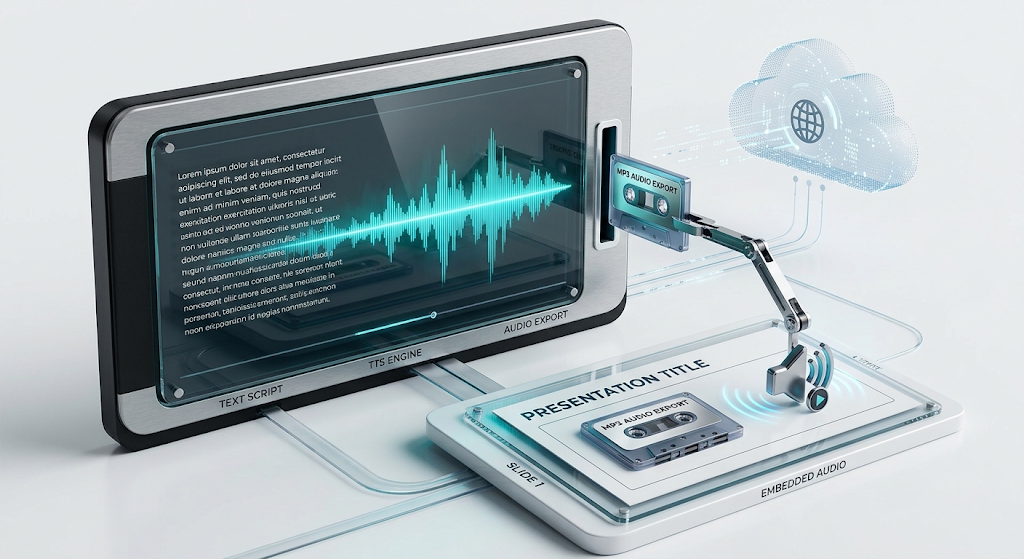
Quick answer: Clipchamp is Microsoft’s video editor, and it has a free text to speech tool. Its own page says you can save the voiceover as an audio file for free. You then insert that file into PowerPoint.
Clipchamp’s AI voice page says you can choose from 400 voices and 80 languages. It also says you can change the speed from half speed to double speed, and adjust the emotion of the voice. That is a lot of choice for a free tool.
The most useful line for PowerPoint users is about exports. The same page says you can export and save the voiceover transcript and the audio-only file for free. An audio-only MP3 file is exactly what PowerPoint wants.
Microsoft’s support page for this feature says the voices come from Microsoft Azure AI Speech. That means your words travel over the internet to a cloud service to become sound. The page also says that if the voices stay stuck on a loading message, your network may be blocking the connection.
Clipchamp’s own blog post about the feature says one voiceover can be up to ten minutes long. That is plenty for one slide. We suggest making one short audio file per slide, which makes fixing mistakes much easier.
Clipchamp also gives small tips on its page. Type an ellipsis, which is three dots, to make a long pause. Use an exclamation mark for emphasis. If a word sounds wrong, spell it the way it sounds. Write numbers in full words, so 1998 becomes “nineteen ninety-eight.”
💡 Quick Tip: Make one audio file for each slide and name the files in order, like “slide-01” and “slide-02.” When you find a mistake later, you only redo one file, not the whole talk.
🎨 Canva: Narrate Slides You Build Inside Canva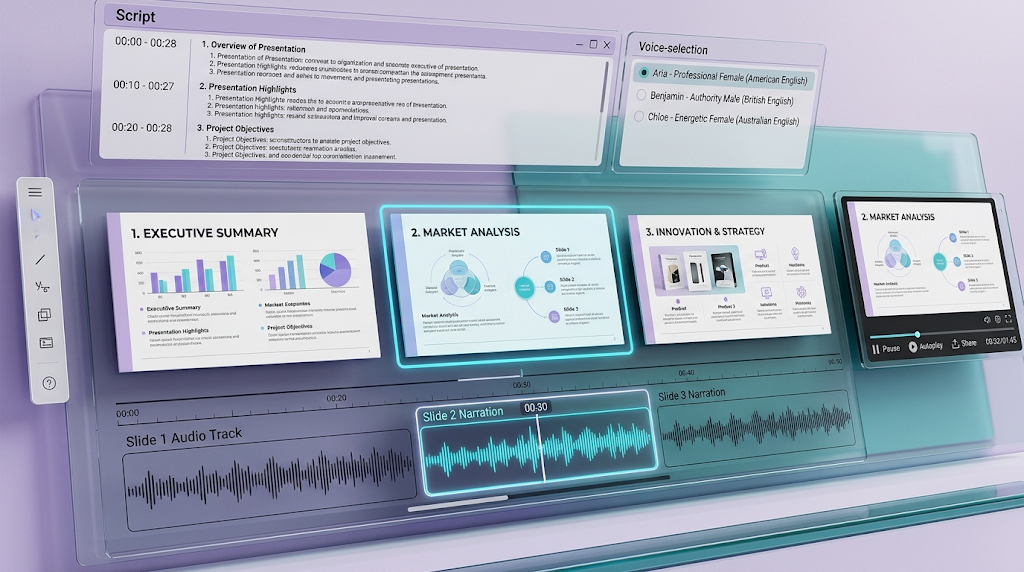
Quick answer: Canva has an AI voice tool inside its editor. You type your words, pick a voice, and the audio lands on your design’s timeline. Use it when your slides are made in Canva, not PowerPoint.
Canva’s help page lists the steps. Open your design, go to Elements, scroll to Audio, and choose Generate AI Voice. You can also find it under the Apps tab. Then type your text, choose the language and voice style, and select Generate.
After that, the voice track appears on the audio timeline, and you can move it to match your slides. To check your work, press Present. Canva lets you choose full screen, presenter view, or autoplay.
The help page does not list a price or a word limit for this tool. It only says that Canva changed how its AI usage limits work, and it points to a separate page. Because we could not find a clear number on the voice page itself, please read that page before you plan a long talk.
We also could not confirm that Canva audio stays attached when you download a deck as a PowerPoint file. If you need the final file in PowerPoint, test one small slide first. If you want help judging Canva’s plans, read our guide on what Canva’s AI tools really give you.
🖥️ PowerPoint’s Own Recording: Your Voice, Not AI
Quick answer: PowerPoint can record your real voice and the time you spend on each slide. It is not AI, but it needs no other app. Use it when you want a human voice or a simple backup plan.
Microsoft’s record page says to go to Slide Show, select Record, and choose audio or video. The recording is saved with your slides, so the talk can play for anyone who opens the file.
PowerPoint can also add a finished audio file. Microsoft explains that you go to Insert, then Audio, then Audio on My PC, choose your file, and select Insert. This is the step you will use for the Clipchamp route. See Microsoft’s page on adding audio for the details.
There is a limit if you work in the web version. Microsoft’s audio page says PowerPoint for the web accepts MP3, WAV, M4A, AAC, and OGA files, and each file can be up to 16 megabytes. Short per-slide files stay far below that limit.
📊 How the Three Ways Compare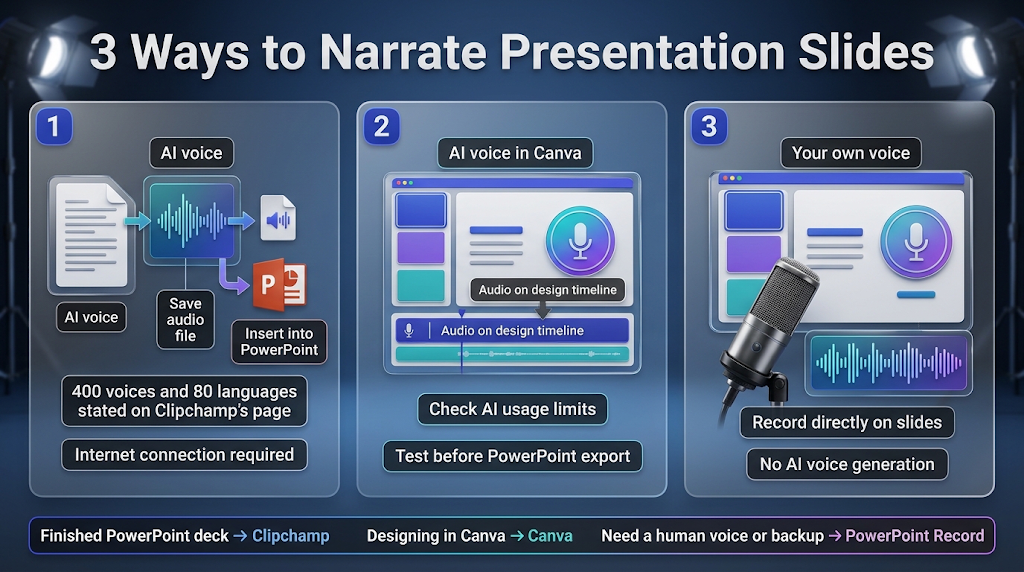
Quick answer: Clipchamp gives you the most voice choice and works with finished PowerPoint decks. Canva is easiest if you design there. PowerPoint’s recorder is the simplest, but it uses your own voice.
|
Way |
Voice type |
How the audio reaches your slides |
What the official page says |
Watch out for |
|---|---|---|---|---|
|
Clipchamp |
AI voice |
Save an audio file, then insert it in PowerPoint |
400 voices, 80 languages, free audio-only export |
Voices load from the internet, so a blocked network can stop them |
|
Canva AI Voice |
AI voice |
Audio is added to your Canva design timeline |
Steps listed; no price or limit shown on the voice page |
Check Canva’s AI usage limits page; test before exporting to PowerPoint |
|
PowerPoint Record |
Your own voice |
Recorded directly on the slides |
Record audio or video from the Slide Show tab |
Not AI; you must speak and may need to redo takes |
🪜 How to Add AI Narration to a PowerPoint Deck, Step by Step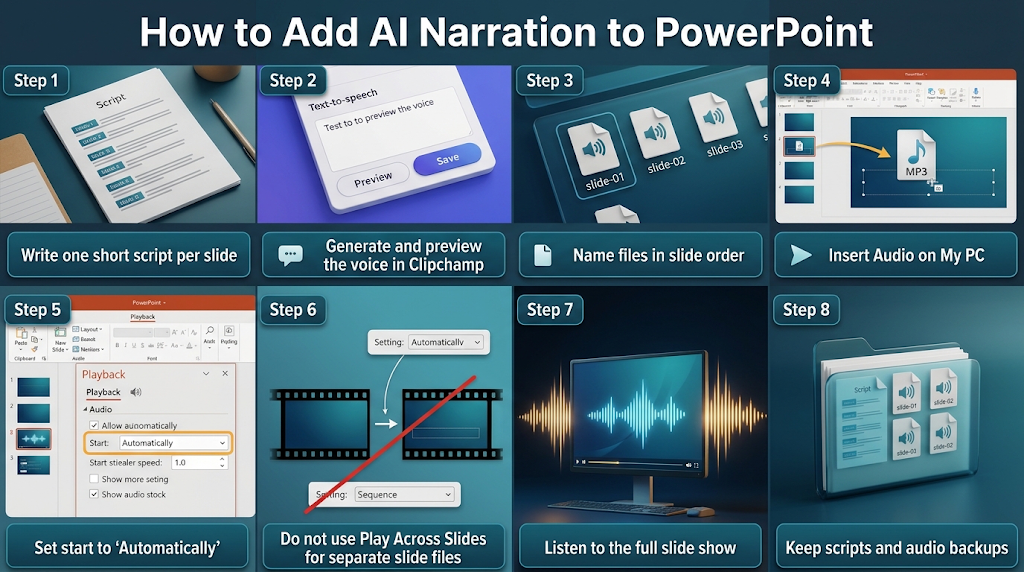
Quick answer: Write one short script per slide, turn each script into an audio file, insert each file on its slide, and set it to play on its own. Then run the slide show once from start to end.
- Write your scripts first. Put one block of words per slide in a plain text file. Keep each block short, because short audio is easier to fix.
- Make the audio. Open Clipchamp and start a new video. In the left menu, choose Record & create, then Text to speech. The panel on Clipchamp’s feature page shows boxes for language, voice, emotion, pitch, and text, plus Preview and Save buttons. Paste the first script, press Preview, then Save. Next, look for the audio-only export. Our team also noted another way: right-click the saved clip on the timeline, choose Audio, then Detach. We did not find this step on an official page, so check it in your own version.
- Name the files in order. Use names like “slide-01” so you never mix them up.
- Insert the audio. In PowerPoint, click the slide, then choose Insert, Audio, and Audio on My PC. Pick the matching file.
- Set it to play. Click the small speaker icon, then open the Playback tab. PowerPoint may set a new audio file to start in the click sequence, which means it waits for your click. Change Start to Automatically if you want the voice to begin as soon as the slide appears. Microsoft’s pages list starting automatically and starting when clicked as choices.
- Be careful with “Play Across Slides.” Microsoft says this option plays one audio file across all slides. Do not use it when each slide has its own file. Read Microsoft’s page on it if you are unsure.
- Test the whole show. Press the slide show button and listen from the first slide to the last. Fix any slide where the voice ends too late or too early.
- Save a copy. Keep your script file and your audio files in one folder. If PowerPoint ever loses a file, you can add it again in seconds.
✍️ How Should You Write a Script for an AI Voice? 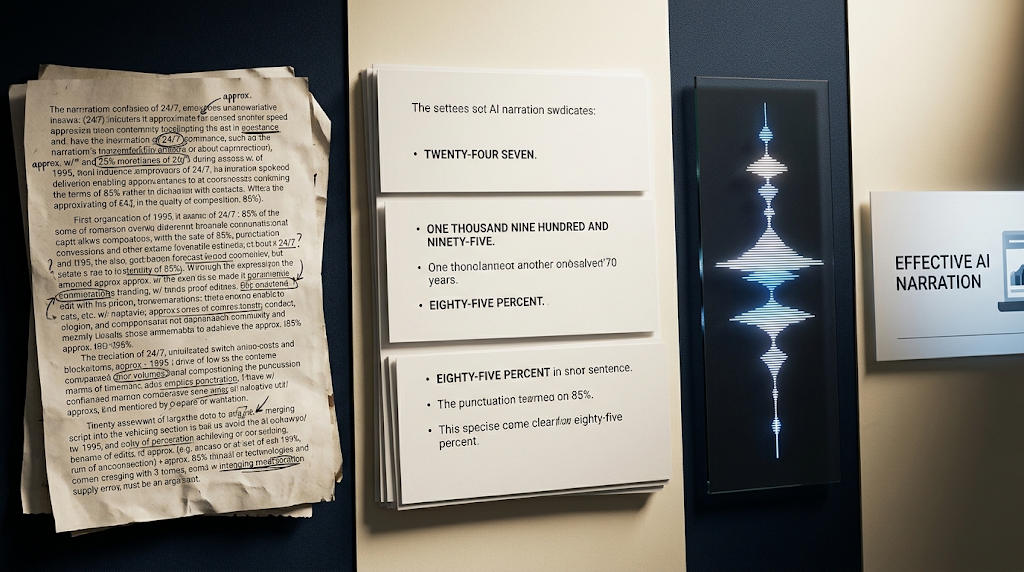
Quick answer: Write the way people talk. Use short sentences, simple words, and one idea per slide. Do not read the words on the slide. Say what the slide does not show.
A voice-over works best when it adds to the slide. If the slide says “Sales grew,” the voice should explain why. Your audience can read the slide on their own, so give them something new to hear.
Short sentences help the voice sound more natural. Long sentences with many commas often sound flat. Read your script out loud once yourself. If you run out of breath, the sentence is too long.
Watch the pronunciation of names, short forms, and numbers. As Clipchamp advises, spell odd words the way they sound and write numbers out in words. Listen to every file before you use it, since a computer voice can read a name wrongly.
Keep a friendly tone. Say “you” and “we.” Start with a short hello on the first slide and end with a clear last line on the final slide. Avoid long lists, because people forget what they only hear.
🔒 Is It Safe to Use Online Voice Tools With Your Slides?
Quick answer: It is usually fine for ordinary lessons and talks. Do not paste private or secret text into any online tool. Your words are sent to company servers to be turned into sound.
Microsoft’s Clipchamp page says the voices run on Microsoft Azure AI Speech, and it tells network teams to allow traffic to Microsoft servers. That shows your script leaves your computer. This is normal for cloud tools, but it matters for secret privacy-sensitive text.
Before you paste anything, ask one question: would I be fine if this text sat on a company server? If the answer is no, such as private customer names, health details, or unpublished work, leave it out or use your own recording.
Also check the rules of your school or workplace. Some places want you to say when a voice is made by AI. When in doubt, add a short line on your first slide, such as “Narration made with an AI voice.” It is honest and takes five seconds.
Finally, read the terms of each tool before using the audio for money-making work. We did not check each tool’s rules for commercial use, so please read them yourself. Free tools can have different rules from paid plans.
⚠️ Common Mistakes to Avoid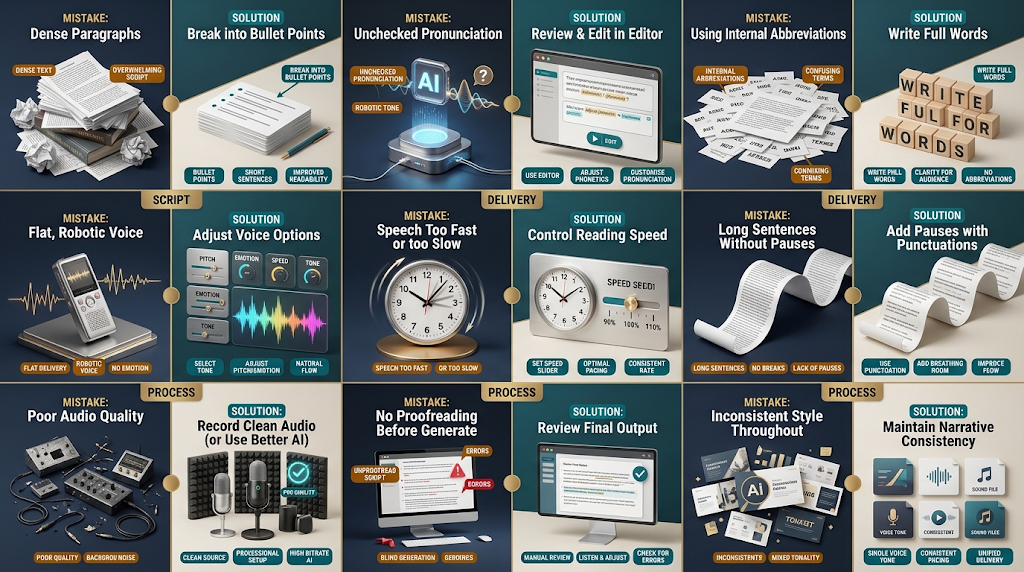
Quick answer: Most problems come from long scripts, unchecked audio, and wrong playback settings. A few small habits fix nearly all of them.
- Reading the slide word for word. The audience reads faster than the voice speaks, so it feels slow and boring.
- Making one huge audio file. One mistake means redoing everything. Use one file per slide.
- Skipping the listening test. Always play each file once before you insert it.
- Choosing “Play Across Slides” by mistake. This can make one file play over many slides.
- Forgetting file formats and size. If you use PowerPoint for the web, stay with the supported formats and the 16 megabyte limit.
- Not keeping the script. Save your script text so you can fix a line later in minutes.
- Trusting one place for your files. Clipchamp projects can live in OneDrive, so keep your script and finished audio files in a normal folder too.
- Hiding that the voice is AI. A short note builds trust and avoids trouble.
- Ignoring accessibility. Add the script as slide notes or subtitles so people who cannot hear the audio can still follow. Our list of free AI subtitle generator tools can help.
🧪 What Happened When We Tested Clipchamp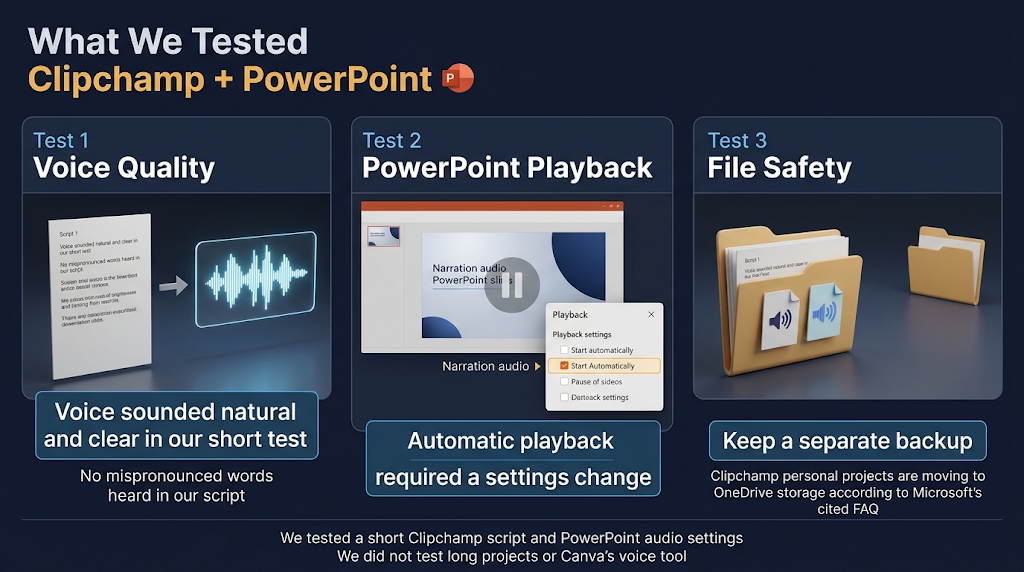
Quick answer: The voice sounded natural and clear to us, and it did not say any word wrongly in our short script. The one surprise came in PowerPoint: the audio did not start by itself.
We tried Clipchamp’s text to speech with a short script and then listened to the result. The voice did not sound like a robot. It felt more like a friend sending a voice note, which fits a relaxed talk well. We did not hear a single wrong word in our script.
Next, we looked for the export button. It sits in the top right corner of the screen, and it has a small arrow that points up. When we clicked it, Clipchamp asked us to pick a video quality, such as 480p, 720p, or 1080p. For a sound-only file, use the audio-only export from Clipchamp’s feature page or the Detach step in the list above.
Then we added the audio to PowerPoint. We expected it to play as soon as the slide appeared, but it did not. PowerPoint waited for a click. We had to open the Playback tab and change Start to Automatically. It is a tiny setting, and it is the step people miss most often.
The biggest catch is not about the voice. Microsoft’s own cloud storage FAQ says personal Clipchamp projects are moving to OneDrive storage. Microsoft also has a page for missing or locked projects. So keep a backup of your script and your finished audio files in a normal folder on your computer. We did not test long projects, so we cannot say how Clipchamp behaves with them. 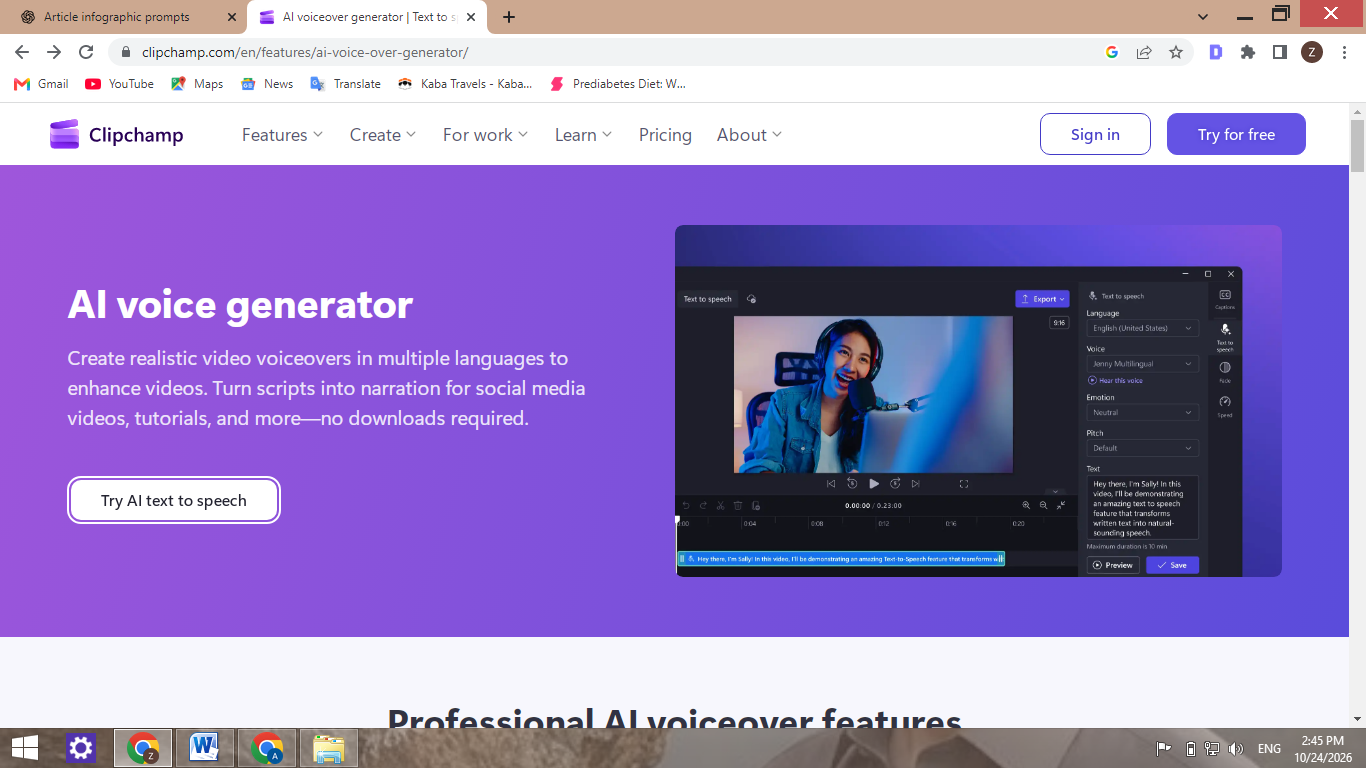
🔍 How We Checked This Article
Quick answer: We read the official pages of Clipchamp, Canva, and Microsoft. The BrainxoAI team also tried Clipchamp’s AI voice and PowerPoint’s audio settings by hand. We did not test Canva’s voice tool, so for Canva we only repeat what its help page says.
We opened these pages and used only what they say: Clipchamp’s AI voice page, Microsoft’s Clipchamp text to speech support page, Canva’s AI voice help page, and Microsoft’s pages on recording a presentation and adding audio. We also looked at the screens on Clipchamp’s feature page, which show the Record & create menu path and a maximum duration of 10 minutes in the text to speech panel.
Our hands-on test covered only Clipchamp’s voice and PowerPoint’s audio settings. We did not test Canva’s AI voice, so we cannot say how it sounds or which voices a free account gets. We also did not confirm Canva’s price or limit, or whether Canva audio survives a PowerPoint export. We left out other voice tools because we could not open their official pricing pages. Features and limits change, so check each page again before you rely on it.
If we run a Canva test later, we will add real notes and screenshots to this article.
❓ Frequently Asked Questions
Can PowerPoint make an AI voice by itself?
We found no official Microsoft page that says so. PowerPoint’s recorder captures your own voice, so use a tool like Clipchamp for an AI voice.
Is Clipchamp’s text to speech free?
Its own page says you can save the voiceover transcript and audio-only file for free. Check the page again for any new limits.
How long can one Clipchamp voiceover be?
Clipchamp’s blog says up to ten minutes. We still suggest short files, one per slide.
Which audio files does PowerPoint for the web accept?
Microsoft lists MP3, WAV, M4A, AAC, and OGA, with a limit of 16 megabytes per file.
Does Canva’s AI voice cost money?
Its help page shows no price and points to a page on AI usage limits. Read that page before you plan a long talk.
Can I narrate slides in another language?
Clipchamp says it supports 80 languages. Listen to the result before using it, because accents and names can be wrong.
Will the narration play on its own?
Yes, if you set Start to Automatically on the Playback tab. Otherwise it may wait for a click, so test the whole slide show.
Should I tell my audience the voice is AI?
We think yes. A short line on the first slide is honest and many schools and workplaces ask for it.
What if the voices will not load in Clipchamp?
Microsoft says a network or firewall may block the connection. Try another network, or ask whoever runs your network to allow the Microsoft addresses listed on the support page.
✅ Conclusion
A free AI voice for your slides is real and easy to try. The simplest route for a finished PowerPoint deck is to write one short script per slide, make the audio in Clipchamp, and insert each file. Canva is a good choice if you design there, and PowerPoint’s own recorder is a safe backup with your own voice.
Keep your scripts short, listen to every file, and tell your audience when a voice is AI. Check each tool’s official page before you depend on it, because plans and limits change. Start with just one slide today, and you will have the whole process figured out in minutes.
Reviewed by the BrainxoAI Editorial Team, which researches and compares free AI tools for students, teachers, and working professionals.