
Meta Title: Is Google Vids Free? AI Video Limits Explained (2026)
Meta Description: Google Vids is free with a Google account, but AI video has a small monthly limit. See the real numbers from Google’s own pages, and why sites disagree.
🎬 Is Google Vids Free? What You Get and How Many AI Videos You Can Make (2026)
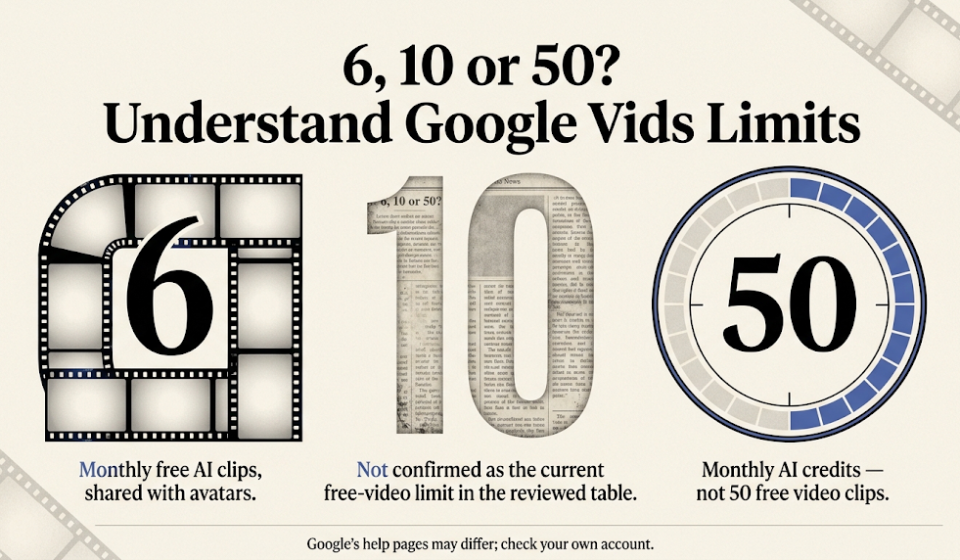
 You search for “Is Google Vids free?” and one site says you get 6 AI videos a month. Another says 10. A third says 50. They cannot all be right. This guide reads Google’s own help pages, which we checked on October 14, 2026, to find out what is true. You will see what is free, what costs money, and why the numbers on the web do not match.
What Is Google Vids
Google Vids is a video maker that works in your web browser. It is part of Google Workspace, next to Docs and Slides. You can build a video from scenes, add a voice, and use generative artificial intelligence to make clips. Google describes it as an AI-powered video creation app.
Basic Vids tools are free with any Google account. The AI parts are the tricky part, because they have monthly limits that change with your account type. If you only need a quick explainer video, the free plan may be enough. If you want to make video every week, the limits matter a lot.
✅ The Short Answer: What Is Free and What Is Not
Google’s availability page says you can use basic Vids features with your Google account. For a free personal account, it lists the AI limits below. Anything marked “credits” comes from one shared pool of 50 credits each month.
Feature | Free Personal Account |
|---|---|
AI video clips | 6 per month, combined with AI avatars |
AI avatars | Preset avatars only; they count in the same 6 |
Help me create (plan a video) | 5 credits per use |
AI voice-over | 1 credit per voice-over |
Image generation and editing | 1 credit per action |
Slides to Vids with AI voice-overs | 5 credits per use |
Background removal and music generation | Not listed for personal accounts |
Google says the limits and the exact features “are subject to change,” so check your own account.
So the honest answer is yes and no. The editor is free, and you can make a few AI clips for free. But 6 clips a month is a small number, and AI avatars share those same 6.
💡 Quick Tip: Plan your clips before you press Generate. With only 6 a month, every try counts, so write a clear prompt first.
🔢 Why You See 6, 10, and 50 Online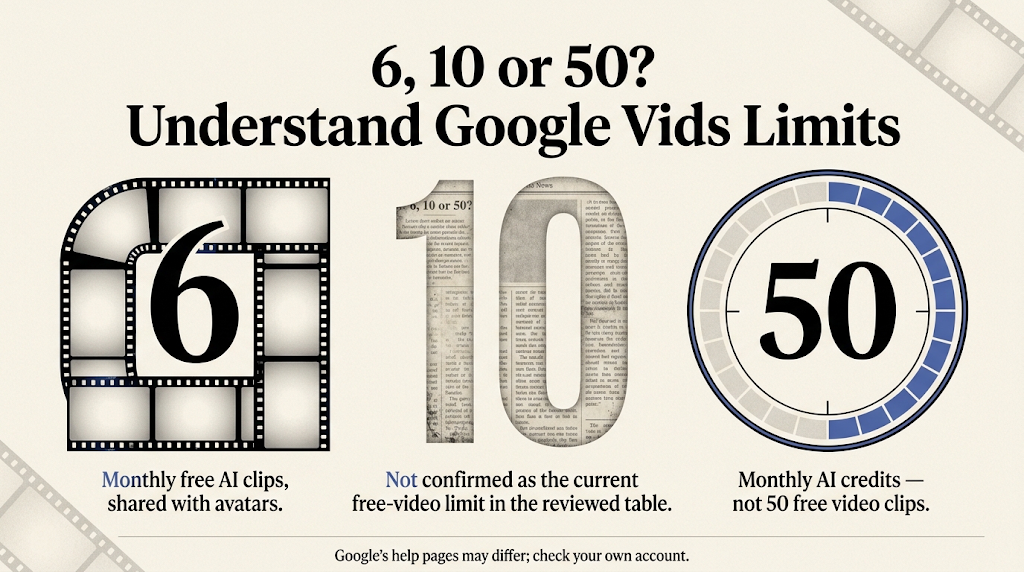
This is the part most articles get wrong, so let us sort it out. The number 6 comes from Google’s availability table. It is the free personal limit for AI video clips and avatars, combined. A TechRepublic report from September 24, 2026 gives the same number and credits Google’s help page.
The number 50 shows up in two places, and they mean different things. On the free personal plan, Google’s usage limits page says you can use Gemini in Vids 50 times a month. Those are credits, and different actions cost different amounts. On Google’s AI video help page, a line says most users can generate up to 50 videos per month. Our math is that this matches 500 seconds of video on a paid plan, divided by clips of 10 seconds each.
The number 10 is the one we could not find on Google’s current table for free video. Some news sites reported 10 free generations earlier in 2026. Google does list 10 for other things, such as Slides to Vids with avatars on a Business Standard plan. Our advice is simple: trust Google’s current table, and check the counter inside your own account.
One more warning. The AI video help page still says the feature needs an eligible Google Workspace subscription, while the availability page lists personal accounts. Google’s pages do not fully agree with each other. When in doubt, open Vids and see if the “Create AI videos” option appears for you.
🛠️ How to Make a Free AI Video Clip, Step by Step
Google’s AI video clip page lists the steps. Open Google Vids on your computer, and pick Create AI videos from the start menu. In the side panel, choose Create to make a new clip from a text prompt. Pick Landscape or Portrait, then choose a length between 3 and 10 seconds.
You can also upload up to 7 pictures as “ingredients,” so the clip follows your look. Write a clear prompt that names the subject, the place, the action, the camera, and the mood. Press Generate, then Insert to add the clip to your video. Google says the clip’s history disappears when you close the Vids tab, so insert any clip you want to keep.
Other modes work the same way. Animate turns a still picture into a short clip. Edit changes a video you upload, though only the last 10 seconds are edited. Extend adds more action to a clip made in the same session. Google says the clips come out at 24 frames per second, in 720p and 1080p, with 16:9 or 9:16 aspect ratio.
🧮 What Your 50 Free Credits Can Buy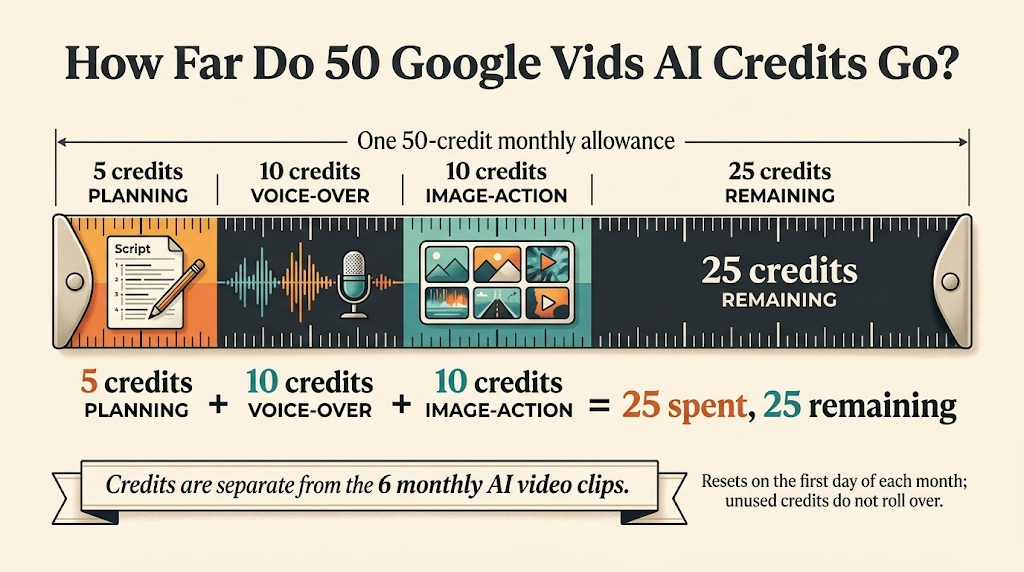
The 6 clips and the 50 credits are two separate buckets. The credits cannot buy more clips, but they pay for the helper tools around your video. Here are some example mixes, based on Google’s credit prices.
If you use Help me create once, that is 5 credits. Add 10 voice-overs at 1 credit each, and 10 image actions at 1 credit each. That is 25 credits for one video, so you could make about two videos a month with this mix. If you skip Help me create and write your own script, 50 credits stretch much further.
Everything resets at 12 AM Pacific Time on the first day of each month. Unused clips and credits do not roll over, and you cannot share your limit with anyone. When you hit the limit, Google says the AI features stop taking your prompts. The rest of the editor keeps working.
💰 Paid Plans Compared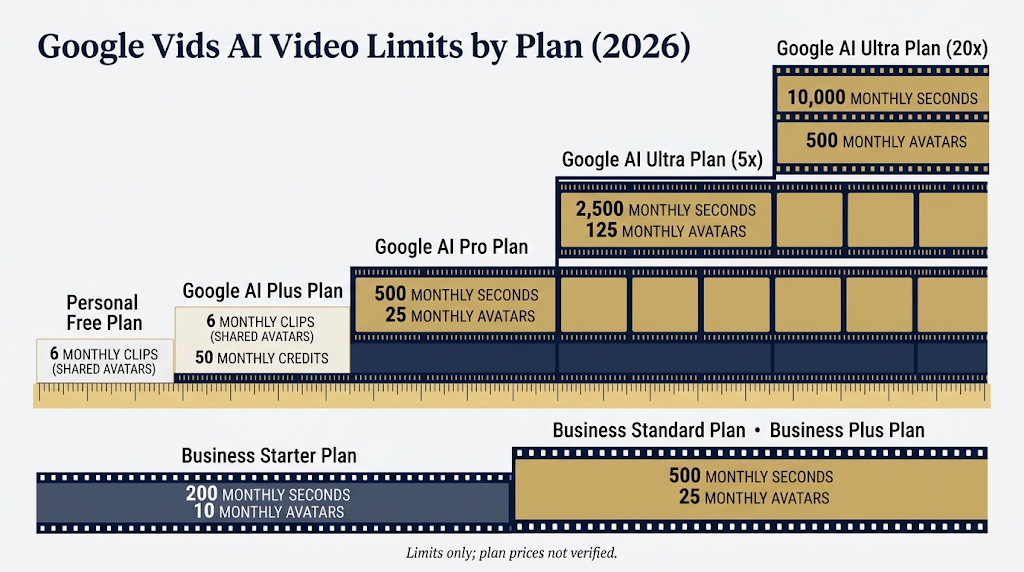
Plan | AI Video Clips | AI Avatars |
|---|---|---|
Free personal account | 6 per month, combined with avatars | Preset only, in the same 6 |
Google AI Plus | 6 per month, combined with avatars | Same pool of 6; 50 credits |
Google AI Pro | 500 seconds per month | 25 per month |
Google AI Ultra (5x) | 2,500 seconds per month | 125 per month |
Google AI Ultra (20x) | 10,000 seconds per month | 500 per month |
Business Starter | 200 seconds per month | 10 per month |
Business Standard and Plus | 500 seconds per month | 25 per month |
This table shows limits only. We did not verify plan prices, so check Google’s plan page for what each one costs today.
Here is a surprise. In Google’s table, the Plus plan shows the same 6 combined limit and 50 credits as a free personal account. So Plus does not raise your video count. The big jump comes with Pro, which is measured in seconds, not clips. For a 10-second clip, 500 seconds is about 50 clips.
If you only need a few videos, free is fine. If you plan to make more than a handful each month, compare the seconds on the plan before you pay. You can also try other options in our free AI video generator guide.
🗣️ Languages and Avatars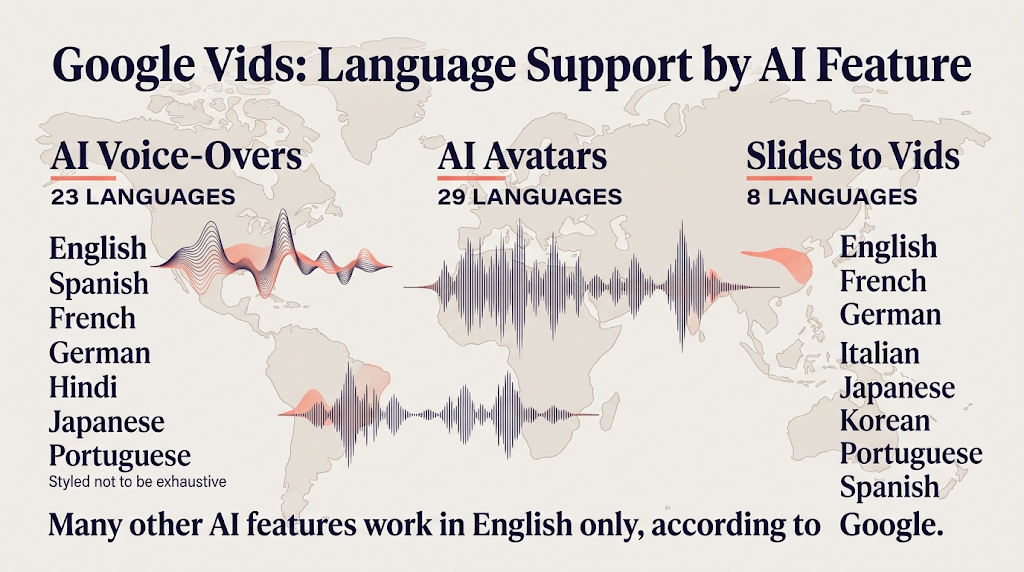
Many AI features in Vids work in English only, according to Google. AI voice-overs support 23 languages, including Spanish, French, German, Hindi, Japanese, and Portuguese. AI avatars can speak your script in 29 languages. Slides to Vids works in 8 languages: English, French, German, Italian, Japanese, Korean, Portuguese, and Spanish.
Personal Google accounts can use preset avatars only. Making an avatar that looks like you is a paid-plan feature, according to the availability page. A voice-over is cheap in credits, so it is a good way to add sound without spending a clip.
If you want a narrated slide deck instead, our guide to AI narration for PowerPoint shows other free tools. For a longer voice job, see the free AI voice generator guide.
🔒 Staying Safe: Rules, Rights, and Accuracy
Google says generated clips follow its Generative AI Prohibited Use Policy. Do not make clips that break that policy. Google also notes that generated images and videos are “designed to bring your imagination to life in Vids” and may not show real-world situations. Never present an AI clip as a real event.
Pay attention to this line on Google’s AI video page: generated images and videos are for use only within Vids. If you plan to post your video on YouTube or use it in an ad, read Google’s terms for your account first. When in doubt, ask before you publish. If you are not sure how your own clips can be used, test with a small private project.
Also be careful with work accounts. Google says your administrator controls access to Vids and can turn off AI features. In some places, you cannot upload and edit your own video with the AI tool. Those places are the European Economic Area, the United Kingdom, Switzerland, Illinois, and Texas.
⚠️ Common Mistakes to Avoid
The biggest mistake is trusting an old number. Limits changed several times in 2026, and some sites still show older figures. Always check Google’s help page, or the counter in your own account. The second mistake is wasting clips on vague prompts. A prompt like “a car on a road” gives weak results, while Google suggests adding camera, light, and mood.
Another mistake is forgetting to insert the clip. Because the history disappears when the tab closes, a clip you did not insert can be lost. The last mistake is expecting an avatar to look like you. On a personal account, only preset avatars are available. If your clip looks wrong, you may have to spend another one to fix it.
👥 Who Should Use the Free Plan
Teachers can make short intro clips for a class. Small shop owners can make a quick video for a sale. Students can turn a slide deck into a video for a project, and a clip or two a month is enough for that. If you also want to turn a talk into a transcript or summary, our AI text summarizer guide can help.
If you plan to post videos in more than one language, read our YouTube auto dubbing guide. It shows how YouTube can make dubbed audio for you. Vids is a good first stop for building the video, and YouTube’s tool can help you reach new viewers afterward.
📅 How We Checked These Numbers
We read Google’s help pages on October 14, 2026. These were the availability table for Gemini features in Vids, the AI video clip page, and the usage limits page. We also read a TechRepublic report from September 24, 2026. We did not make our own test videos for this guide, so we cannot tell you how good the clips look. Google says the limits can change, so open your account to see your own numbers.
❓ Frequently Asked Questions
Is Google Vids free to use? Yes, basic Vids features are free with a Google account. AI video has small monthly limits.
How many AI videos can I make for free in Google Vids? Google’s table lists 6 per month for a free personal account, combined with avatars.
Why do some sites say 10 or 50 free videos? Some reports used earlier numbers, and 50 is also the monthly credit pool on a free account.
How long can a free AI clip be? Google says clips are between 3 and 10 seconds long.
Do unused AI clips roll over to next month? No. Limits reset at 12 AM Pacific Time on the first day of each month.
Can I use my own face as an avatar for free? No. Personal Google accounts have preset avatars only.
Does Google Plus give me more AI videos? In Google’s table, AI Plus shows the same 6 combined limit as a free account.
What happens when I reach the limit? Google says the AI features stop accepting your prompts. The normal editor still works.
Can I make AI clips on my phone? Google’s AI video steps say to open Vids on your computer.
🎓 Conclusion
Google Vids is free with a Google account, and you can try AI video for free. But the free limit is small: Google’s current table lists 6 clips a month, shared with avatars. The 10 and 50 you see online come from older reports, or from credits and paid plans. Check your own counter inside Vids, plan your prompts before you press Generate, and only pay if the free limit is not enough.
Reviewed by the BrainxoAI Editorial Team, which researches and compares free AI tools for teachers, students, and small business owners.