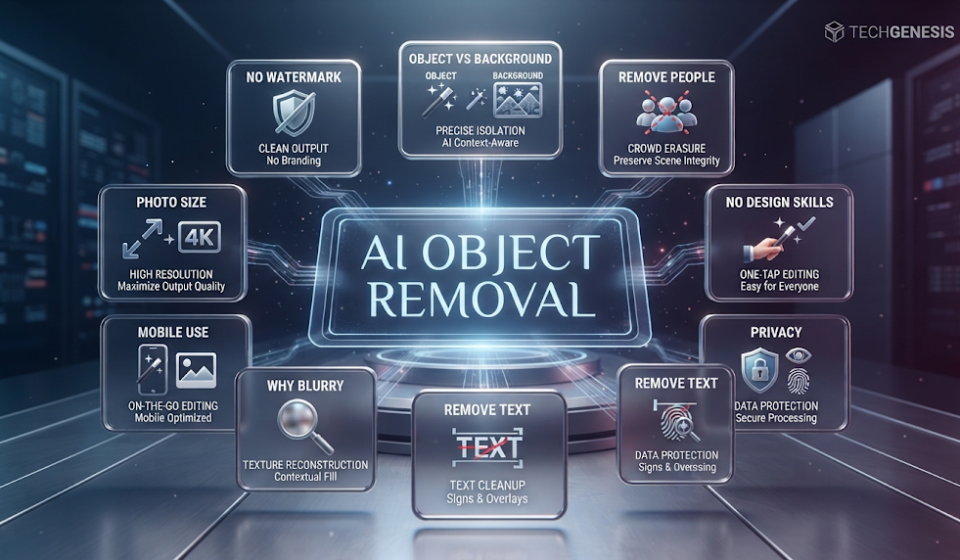

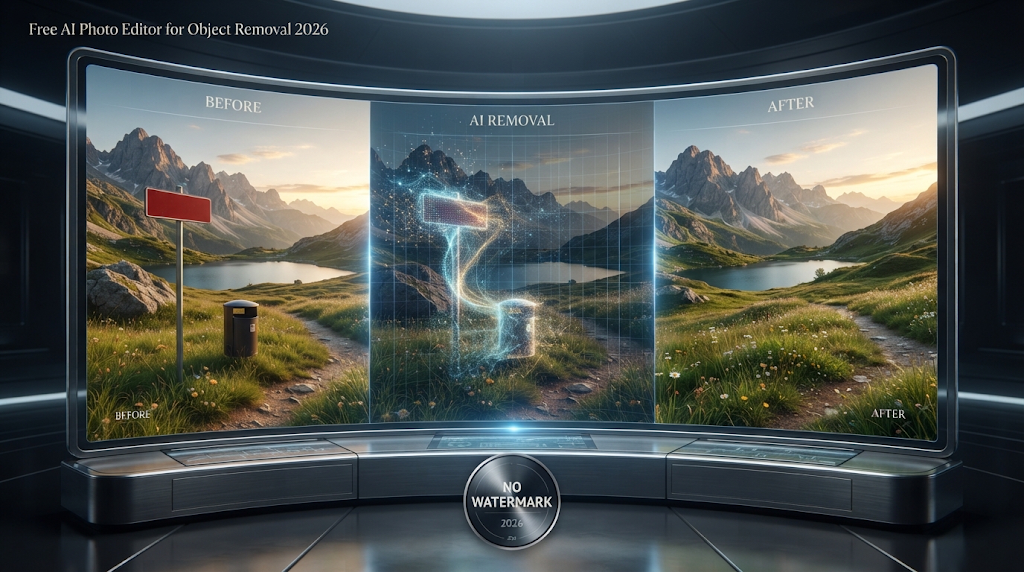
 You take a great photo. Then you look closer and see a stranger walking through the background. Or a trash can in the corner. Or a power line cutting across the sky. A free AI photo editor can erase that one small thing and fix the picture in seconds. You do not need to know Photoshop. You do not need any design skill at all. This guide shows the best free tools that actually do this well, and the ones that leave a blurry mark where the object used to be.
What Is a Free AI Photo Editor for Object Removal
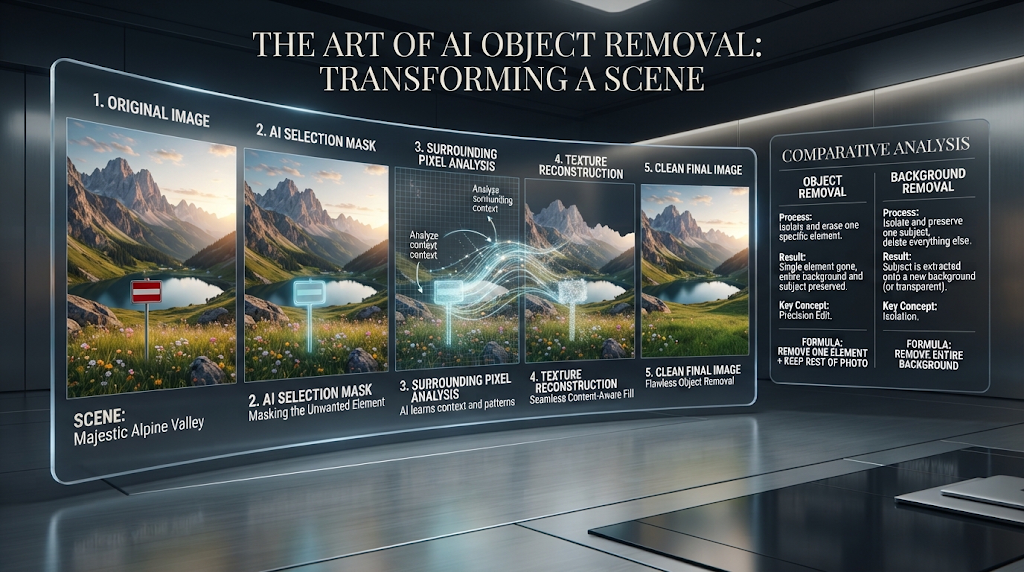 A free AI photo editor for object removal is a tool that finds one unwanted thing in a photo and takes it out. You upload your picture. Then you paint over the thing you want gone, like a stray dog or a street sign. The tool uses artificial intelligence to guess what should be behind that object, and it fills the space in with a matching background.
This is different from a background remover, which cuts out the whole background and leaves only the main subject. Object removal keeps the full photo. It just erases one small part and rebuilds it so the fix is hard to spot.
📈 Why So Many People Need This Now 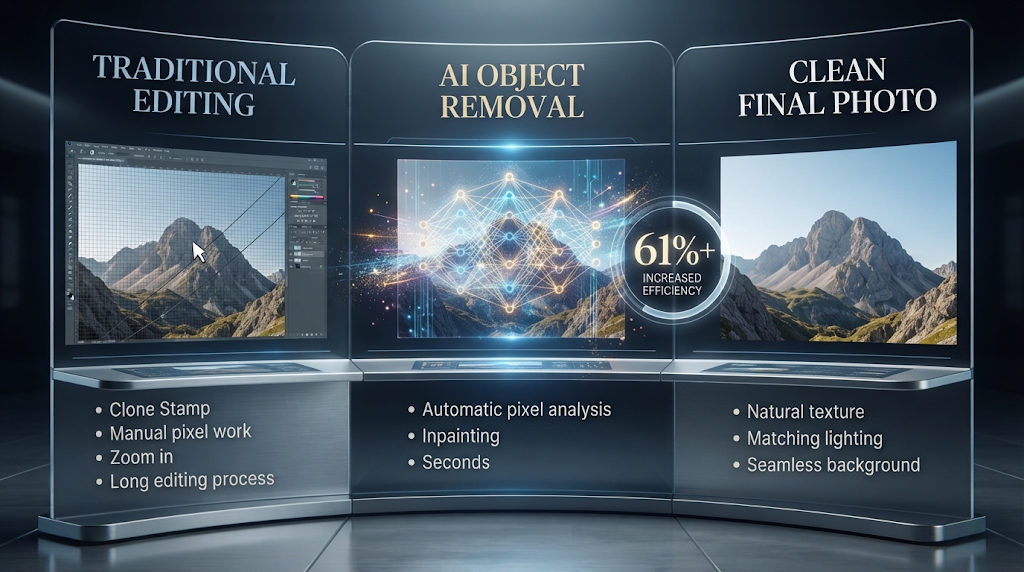
More than 61 percent of marketers now use AI to make pictures for their work, based on a 2026 industry study from Marketing LTB. That number was under 40 percent just two years before. Photo tools have gotten good enough, fast enough, that skipping them no longer makes sense for most people.
Old-school photo editing meant using a Clone Stamp tool by hand, zooming in pixel by pixel, and spending real time to make an edit look clean. AI tools now do this same job in seconds, and the result often looks just as good.
💡 Quick Tip: Object removal works best when the object is small compared to the whole photo. A tiny power line is easy. A person standing in front of a detailed building is much harder for any tool to fix well.
🏆 Best Free Tools for Removing Objects from Photos 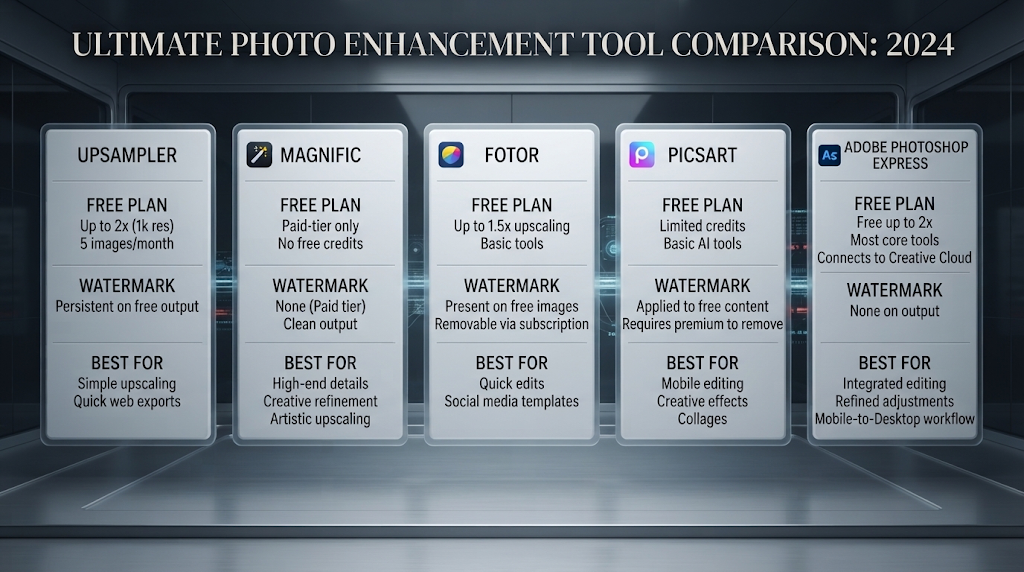
|
Tool |
Free Plan |
Watermark |
Best For |
|---|---|---|---|
|
Upsampler |
Free daily use, no signup |
No |
Quick fixes with no account needed |
|
Magnific |
Free daily credits |
No |
Removing, retouching, and resizing in one place |
|
Fotor |
Free with limits |
Sometimes |
Face touch-ups plus object removal |
|
Picsart |
Free with limits |
Sometimes |
Mobile phone editing on the go |
|
Adobe Photoshop Express |
Free with limits |
No |
Simple, trusted brand name |
Free plan rules change often. Always check the tool’s own website before you count on it for something important.
Upsampler stands out because it needs no account and adds no watermark, which is rare in this space. Magnific is a strong pick if you also need to make the photo sharper or cut out the background later, since all those tools live in one place.
⚙️ How Object Removal Actually Works 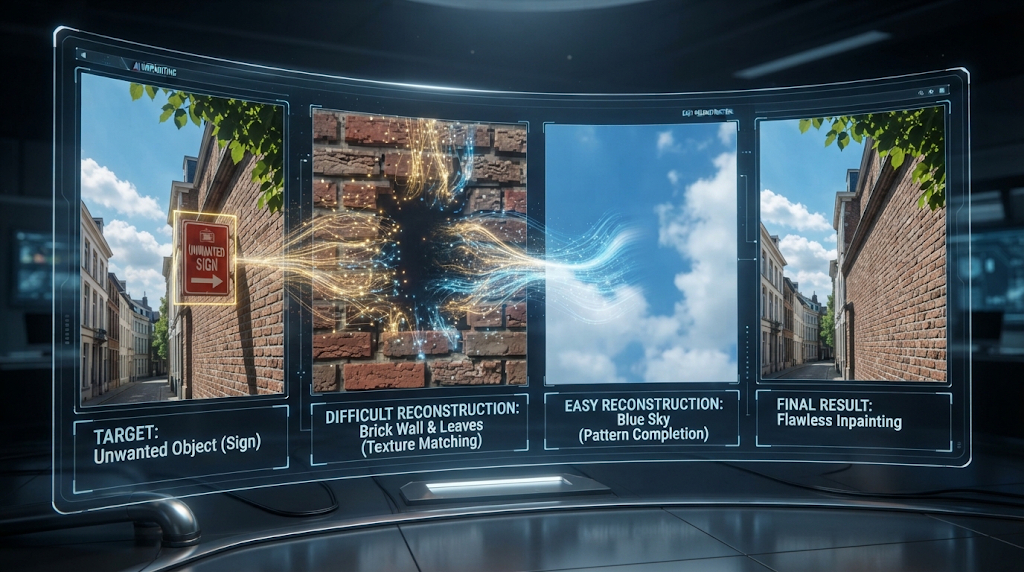
You upload a photo, then use your finger or mouse to paint over the part you want gone. This process is called inpainting, and it is the same basic idea artists have used for centuries to fix damaged paintings, just done by a computer in seconds now.
The AI looks at the colors, lines, and patterns around the object. Then it builds new pixels that match, so the space looks like it was never covered by anything else. A plain sky or a flat wall is simple for the AI to rebuild. A busy pattern, like bricks or leaves, is much harder, and small mistakes can show up if you look closely.
📝 Step by Step: How to Remove an Object 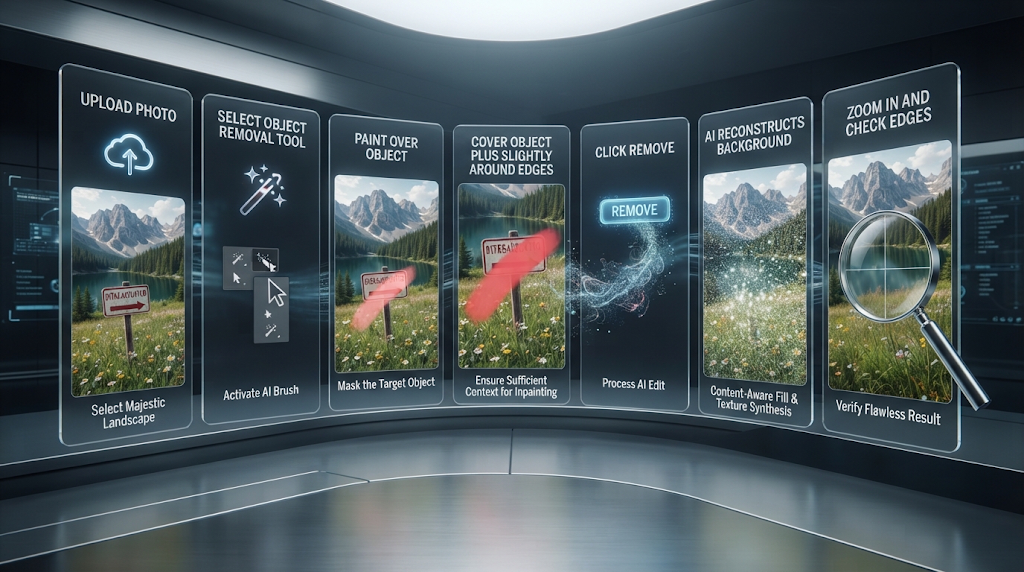
Open your chosen tool and upload the photo you want to fix. Most tools accept JPG, PNG, or WEBP files, so check your photo is saved in one of those before you begin.
Use the brush tool to paint over the object. Try to cover the whole object plus a little bit of the space right around it, since this gives the AI more room to blend the fix smoothly. Press the remove or erase button, then wait a few seconds for the result. Zoom in and check the edges before you save or share the photo.
🎯 Related Skills Worth Knowing 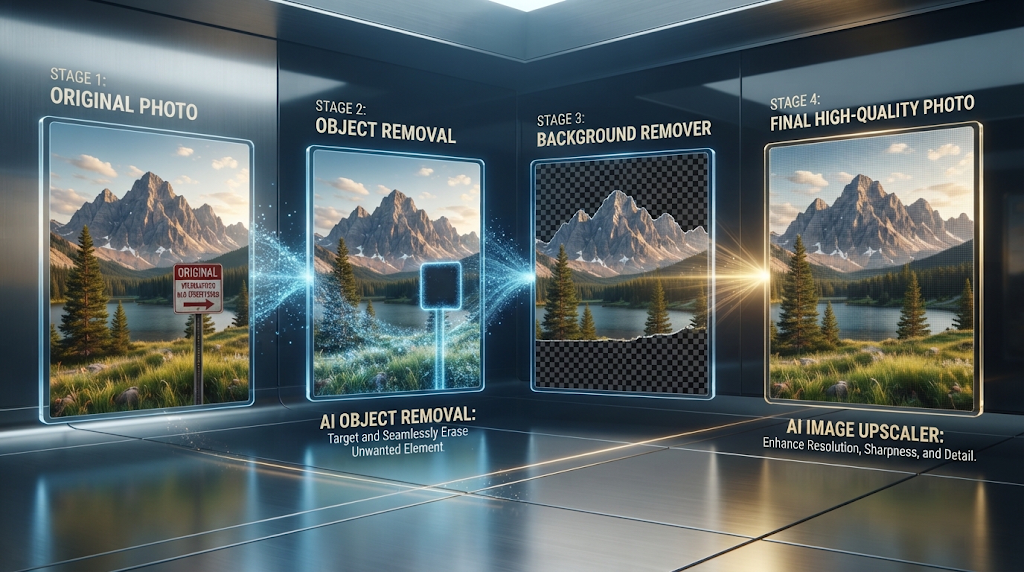
Object removal is just one tool in a bigger toolbox. If you also want to swap the entire background behind your subject, a free AI background remover is the better choice, since it is built for that exact job. If your photo came out small or blurry, a free AI image upscaler can make it sharp again before or after you remove the unwanted object.
Some tools, like Magnific, combine all of these skills in one place, so you never have to move your photo between different websites.
💰 Free Plans vs Paid Plans 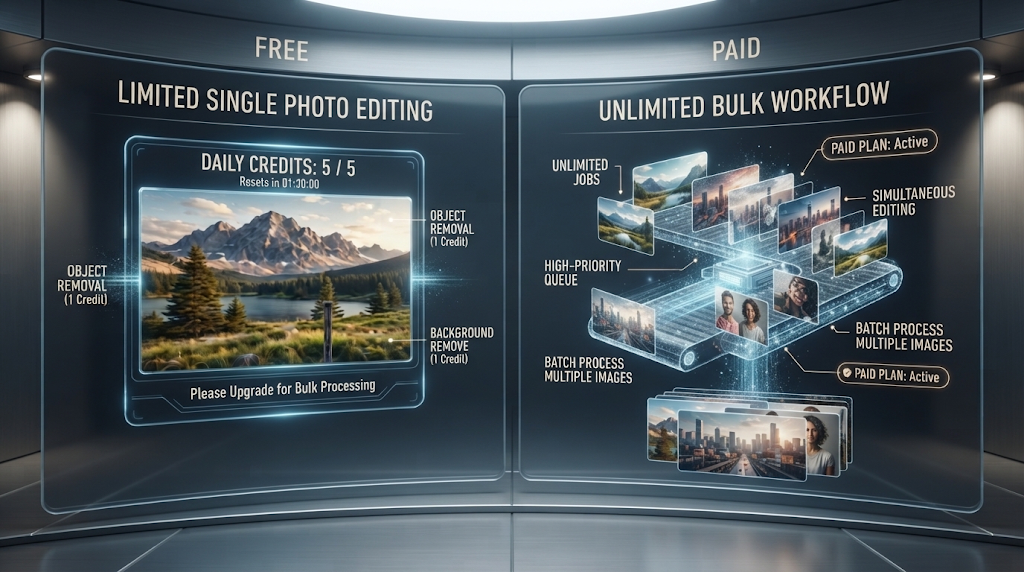
Free plans are good for a handful of photos a week. Most tools give you a set number of free tries each day, then ask you to wait until tomorrow or pay for more. Magnific, for example, gives free daily credits that reset every day, which is enough for casual use but may run out fast if you are editing many photos at once.
Paid plans remove that daily limit and often add extra features, like higher resolution downloads or the ability to edit many photos in a row without repeating each step by hand. If you only need to fix a few photos a month, a free plan is almost always enough. If you sell products online and edit dozens of photos every week, a paid plan can save real time.
🖼️ Why Some Photos Are Harder to Fix Than Others 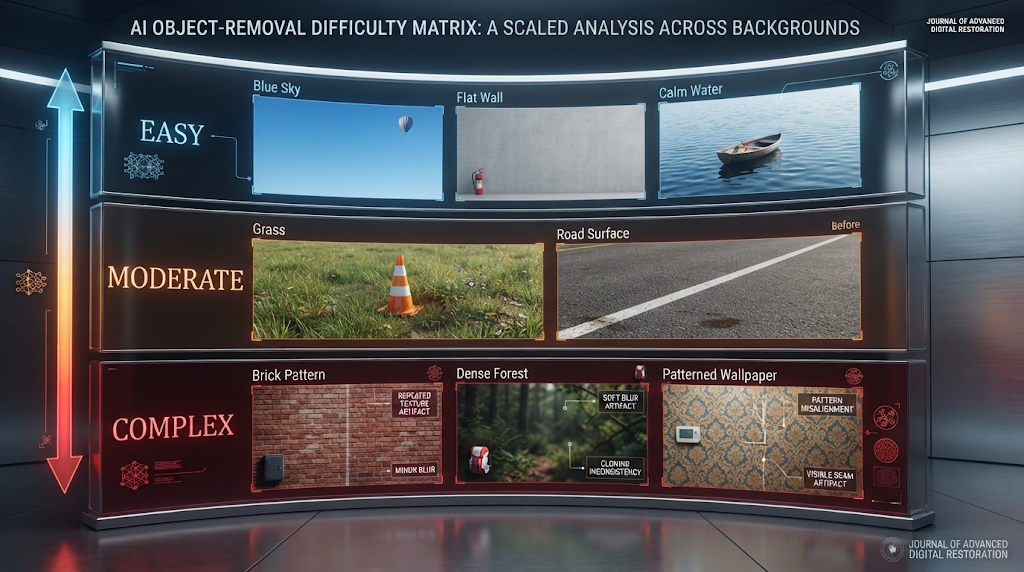
Not every photo is equally easy for AI to fix, and knowing this ahead of time saves you from getting frustrated with a tool that is actually working fine. A plain sky, a calm lake, or a flat wall gives the AI very little to guess wrong about, so results on these backgrounds are almost always clean.
A busy background, like a crowd of people, patterned wallpaper, or a forest full of leaves, is much harder. The AI has to guess what pattern continues behind the object you removed, and on a complex background it sometimes repeats a strange shape or blurs the area slightly. This is not a sign that the tool is broken. It is simply the edge of what today’s AI can do well.
Photos with strong shadows can also be tricky. If the object you remove was casting a shadow, a good tool will remove the shadow too, but a weaker tool may leave a strange dark patch behind where the object used to stand.
🔒 Using These Tools Safely 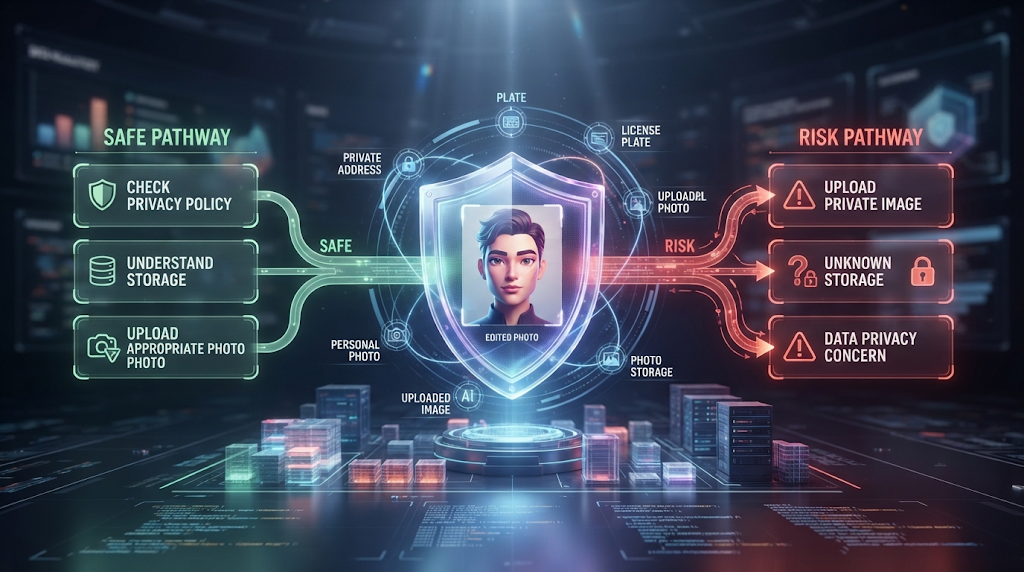
Never upload a photo that has private information in it, like a house address, a license plate, or someone’s face, unless you are okay with that tool storing it. Read the tool’s privacy page first if you are not sure, since some free tools keep your photos to help train their AI.
Be careful about removing people from news photos or important documents, since changing a real photo this way can be misleading if you share it as if it were the original, unedited picture.
⚠️ Mistakes to Avoid 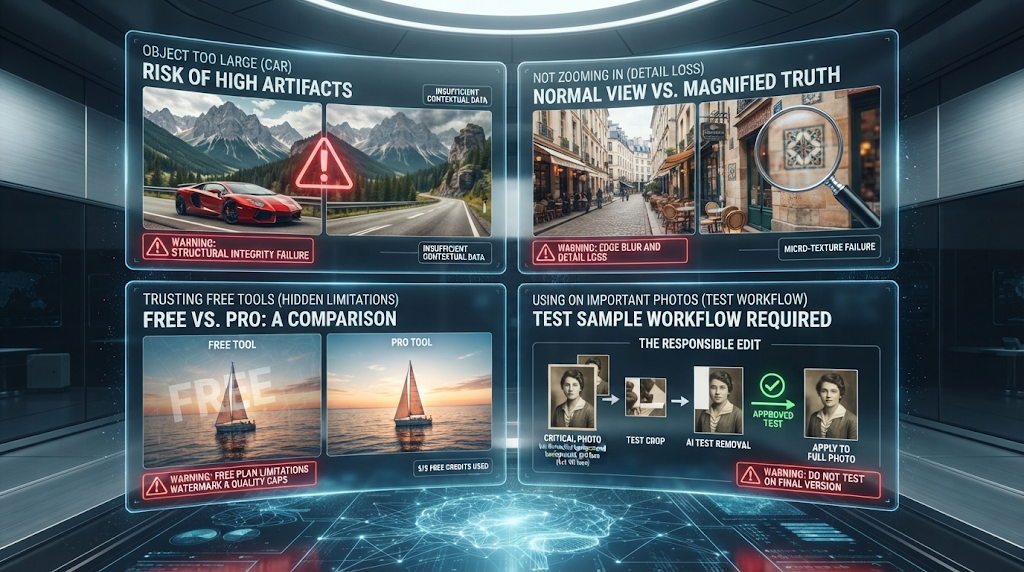
Trying to remove something huge, like a whole car or a large building, almost never looks clean with a free tool, since the AI has too little information to guess what should be there instead. Skipping the zoom-in check before saving is another common mistake, since small blurry patches are easy to miss at first glance but obvious once someone else looks closely.
Using a tool that hides a watermark behind a “free” label is a smaller but annoying mistake. Always test with one photo first before trusting a tool for something important, like a wedding photo or a product picture for your shop.
👥 Who Uses These Tools 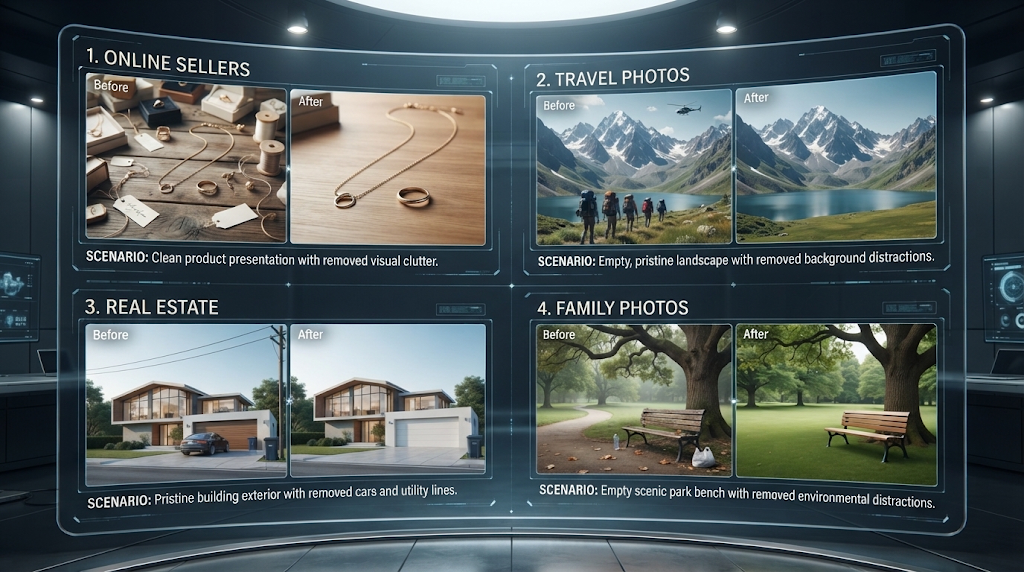
Online sellers use object removal to clean up product photos before listing them for sale. Travelers use it to remove strangers from vacation pictures so the photo looks the way they remember the moment. Real estate agents use it to remove clutter, cars, or power lines from listing photos. Regular people use it just to fix a family photo that would otherwise be perfect.
✨ Tips for a Cleaner Result 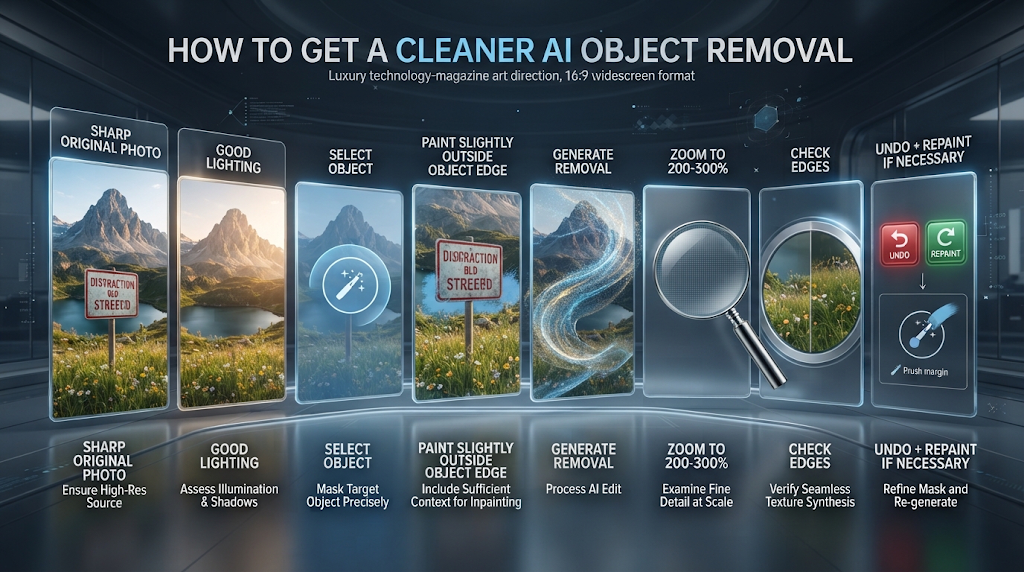
Start with the best photo you have, since AI tools work by guessing from what is already there, not by inventing brand new detail. A sharp, well-lit photo gives the AI much more to work with than a dark or blurry one.
Paint a little wider than the object itself rather than tracing its exact edge. This gives the tool room to blend the fix smoothly instead of leaving a hard, obvious line. If the first try does not look right, most tools let you undo and paint again, so do not settle for a result that still looks off around the edges.
❓ Frequently Asked Questions 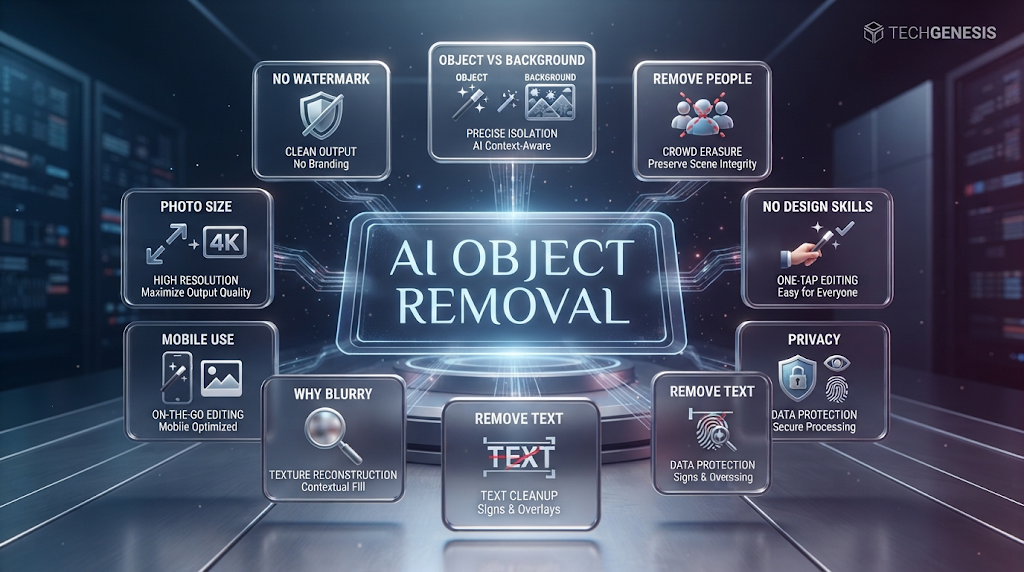
Is there really a free AI photo editor with no watermark?
Yes. Upsampler currently offers free object removal with no watermark and no account needed.
How is object removal different from a background remover?
Object removal takes out one small thing and keeps the rest of the photo. A background remover cuts out everything except the main subject.
Can AI remove a person from a photo without it looking fake?
Often yes, especially on simple backgrounds like sky or grass. Busy backgrounds, like a crowd or a detailed room, are much harder to fix cleanly.
Do I need any design skill to use these tools?
No. Most tools only need you to paint over the object with your finger or mouse, and the AI does the rest.
Is it safe to use free AI photo tools for personal pictures?
Check the privacy page first. Some free tools keep a copy of your photo to help improve their AI models.
Can I remove text or a watermark from a photo?
Yes, most of these tools treat text and watermarks the same way as any other unwanted object.
Why does the fixed area sometimes look blurry?
This usually happens on busy or detailed backgrounds, where the AI has less clear information to work from when rebuilding the space.
Can I use these tools on my phone?
Yes, most of the tools in this guide work in a mobile browser, and Picsart in particular is built with phone use in mind.
Will removing an object change the size of my photo?
No, a good object removal tool only changes the pixels inside the area you painted. The rest of the photo, including its size, stays the same.
🎓 In Short
A free AI photo editor can erase a stranger, a power line, or an old watermark from your photo in seconds, and tools like Upsampler and Magnific do this without charging you or stamping their own logo on the result. Small objects on simple backgrounds work best, so always zoom in and check the edges before you save your final photo. If you need to change the whole background instead of just one small object, a dedicated background remover will give you a cleaner result.
Reviewed by the BrainxoAI Editorial Team, which researches and compares free AI tools for creators, small sellers, and everyday photo edits.